1. Wallet Overview
When opening the wallet, you will always land on the home screen: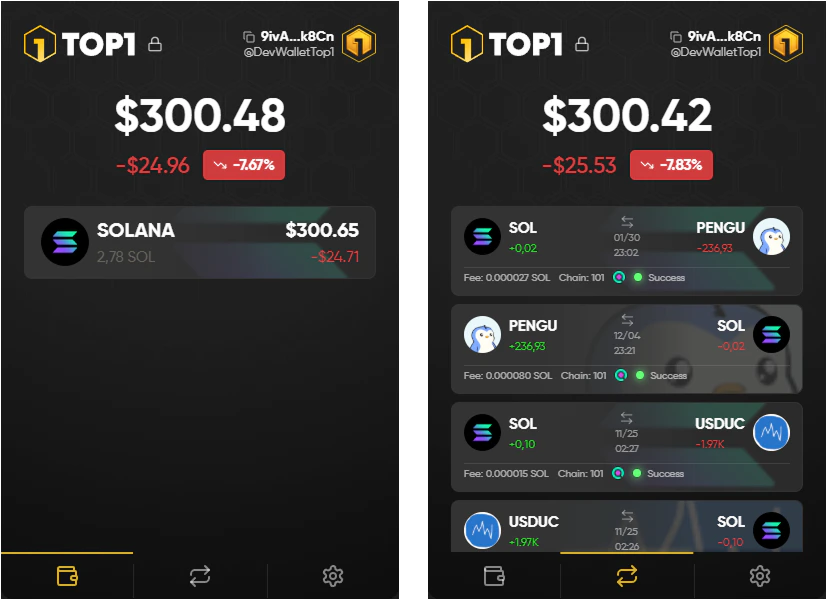
- Copy your wallet address directly from the top right when you want to deposit funds
- Lock your wallet instantly using the lock icon if you step away from your device
- Track your total balance and portfolio value at a glance
- Navigate between without switching to an external trading page
2. Settings Menu
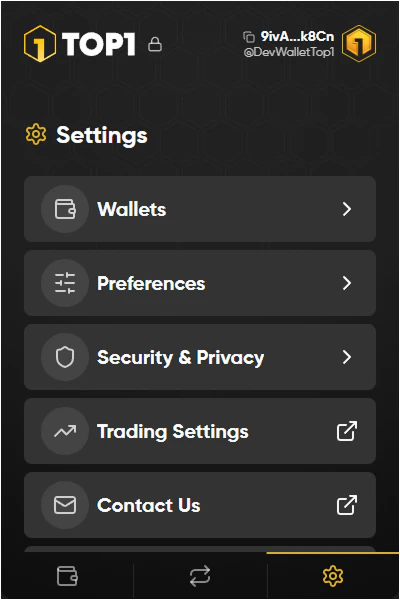
The settings area is where you manage your wallet setup, app behavior, and security options. From here you can access:- Wallet management and imports
- Trading-specific configuration
- Privacy and lock settings
- Support if you run into issues
For trade settings please click this link.
3. Wallet Management
3.1Managing Wallets
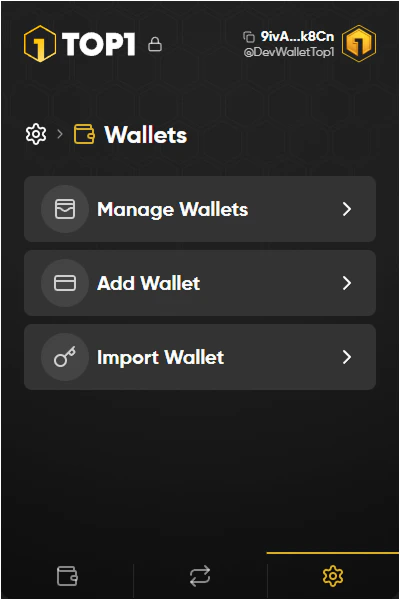
TOP1 allows you to control multiple wallets inside the extension. You can:- Add a new wallet for separate trading accounts
- Import an existing wallet using your recovery method
- Switch between wallets depending on your trading setup
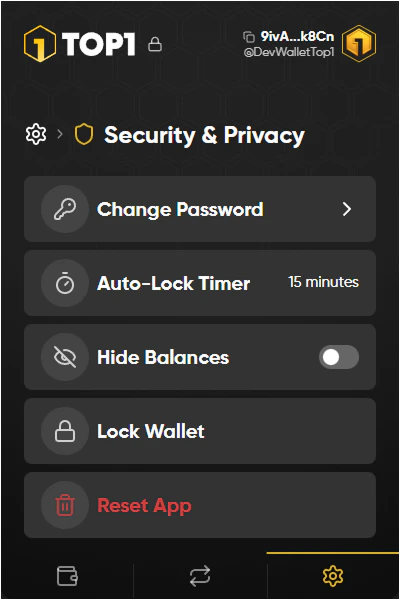
3.2 Security & Privacy Controls
TOP1 includes built-in protection features to secure your account. Important options include:- Auto-lock timer to prevent unauthorized access
- Hide balances when trading in public
- Manual wallet lock for instant protection
- Reset app only if you need a full clean restart
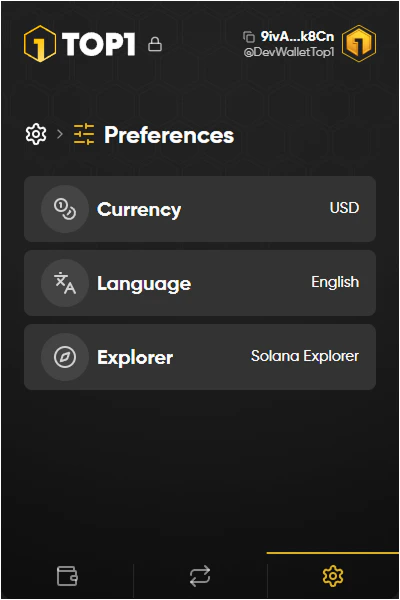
4. Preferences
Preferences allow you to customize how TOP1 behaves in day-to-day usage. Examples:- Select your display currency
- Change language settings
- Choose the default explorer used for